



Creating keyword lists is one of the most useful ways to organize research inside Ahrefs. I often build multiple lists while planning keyword clusters, analyzing competitors, or preparing new content strategies.
Over time, keyword lists pile up and clutter your workspace. When you manage multiple projects, finding the right list becomes difficult. Keeping only important keyword lists helps you stay organized and work more efficiently.
I have been using Ahrefs daily for years, and deleting unnecessary keyword lists is one of the small habits that keeps my research organized.
In this guide, I will walk you through the simple steps to delete keyword lists in Ahrefs so you can maintain a clear and efficient workspace.
Steps to Delete the Keywords List from Ahrefs
1. Go to Ahrefs “Keywords Explorer”
Log in to your Ahrefs account and click on Keywords Explorer from the top navigation menu.
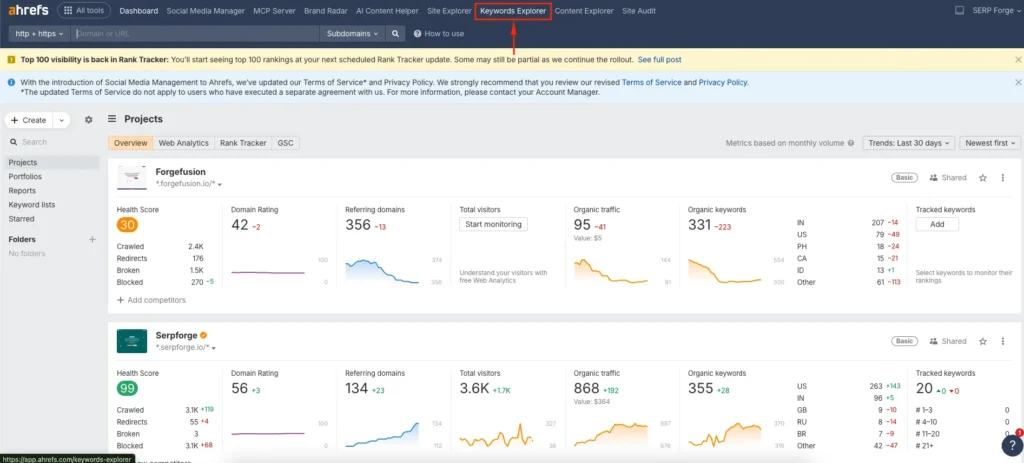
This tool is where you create, save, and manage keyword lists for your SEO research.
2. Find the Keywords List You Want to Delete
Scroll to the section that displays all saved keyword lists. Ahrefs stores every list you have created during your research, so take a moment to locate the specific list you want to remove.

Do you know?
Too many scattered keyword groups increase the risk of content or keyword cannibalisation.
3. Delete the Keywords List from Ahrefs
Once you find the list, click on the three vertical dots located on the right side of the list. Choose Delete and confirm your action. The keyword list will be permanently removed from your Ahrefs workspace.

This is the method I use whenever I want to declutter my account and keep only the lists I actively work with.
Conclusion
Managing keyword lists is an important part of staying organized in Ahrefs. If you keep unnecessary lists in your workspace, it becomes harder to focus on the keywords that matter.
By knowing how to delete keyword lists from Ahrefs, you can maintain a clean research environment and work more efficiently on your SEO projects.
FAQs on Deleting Keyword Lists from Ahrefs
Can I recover a deleted keyword list in Ahrefs?
No. Once you delete a keyword list, Ahrefs does not offer a restore option, so make sure you no longer need it.
Does deleting a keyword list affect my ranking data?
No. Keyword lists are only for organization. Deleting them does not affect your website rankings or tracking data.
Can I delete multiple keyword lists at once?
Ahrefs currently allows deletion only one list at a time. You need to manually remove each list you no longer need.
Will deleting a keyword list remove saved filters or tags?
Yes. Filters, tags, and saved segments inside the list disappear when you delete the list.
Do I need a paid Ahrefs plan to delete keyword lists?
No. As long as you have access to Keywords Explorer and can create lists, you can delete them even on lower-tier plans.